Teleoperation Connection
Recommended Reading
Robot configuration
- While the robot is powered on, click “System Settings” on the Dock bar at the bottom of the robot’s pad to open the System Settings app.
- Select “Teleoperation” in the sidebar of the System Settings app to open the teleoperation configuration page.
- Set “Image Transmission Mode” to “No Image Transmission”.
- Set “Connection Method” to “Direct Ethernet Connection”.
Better to charge the VR headset while using.
Connection
The recommended bandwith for each robot is 20Mb/s. When network bandwidth is insufficient or network signal strength is low, issues such as stuttering video or audio streams, jerky or disjointed robot movements, and disconnections during remote operation may occur.
Learn more about the network topology
| Connection type | Robot IP | Connection method |
|---|---|---|
| Wireless | Depending on the IP Address in the robot settings on pad | Join the VR headset into the same wifi with the robot (not the pad) |
| Wired | 10.42.1.101 | 1. Open the maintenance compartment on the back of the robot. Inside, there is a USB-A port and a USB-C port. 2. Connect the VR headset to the robot using a USB-C cable. |
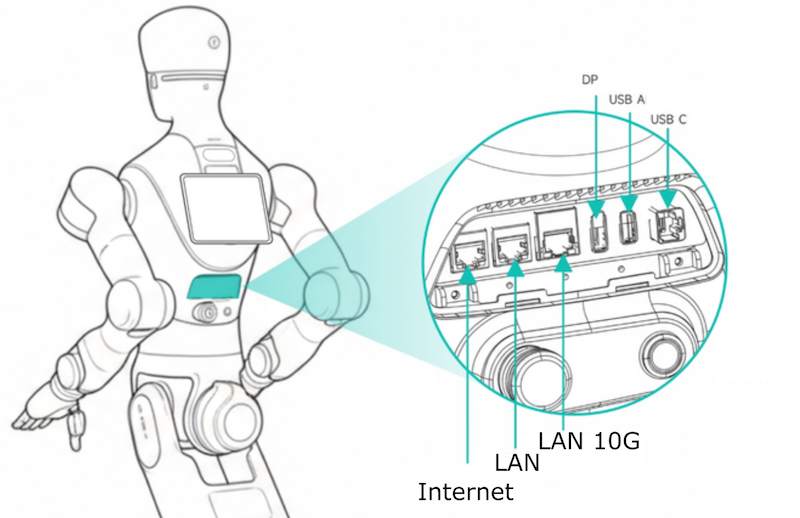
Establish connection
- Put on the VR headset and long-press the power button on the right side to turn it on.
- Open the “Genie Link” app in VR.
- On the connection screen of Genie Link, select “No Video Transmission / Video stream” and “Direct Ethernet Connection (No Video stream)”
Video stream: you will see the robot view. No video stream: see the environment of you.
- IF you select no video stream.
- Refer to the IP Address on the tablet above, input the IP address, then click Connect.
- A “Connection Successful” bubble notification confirms that the connection has been established.
Button instructions
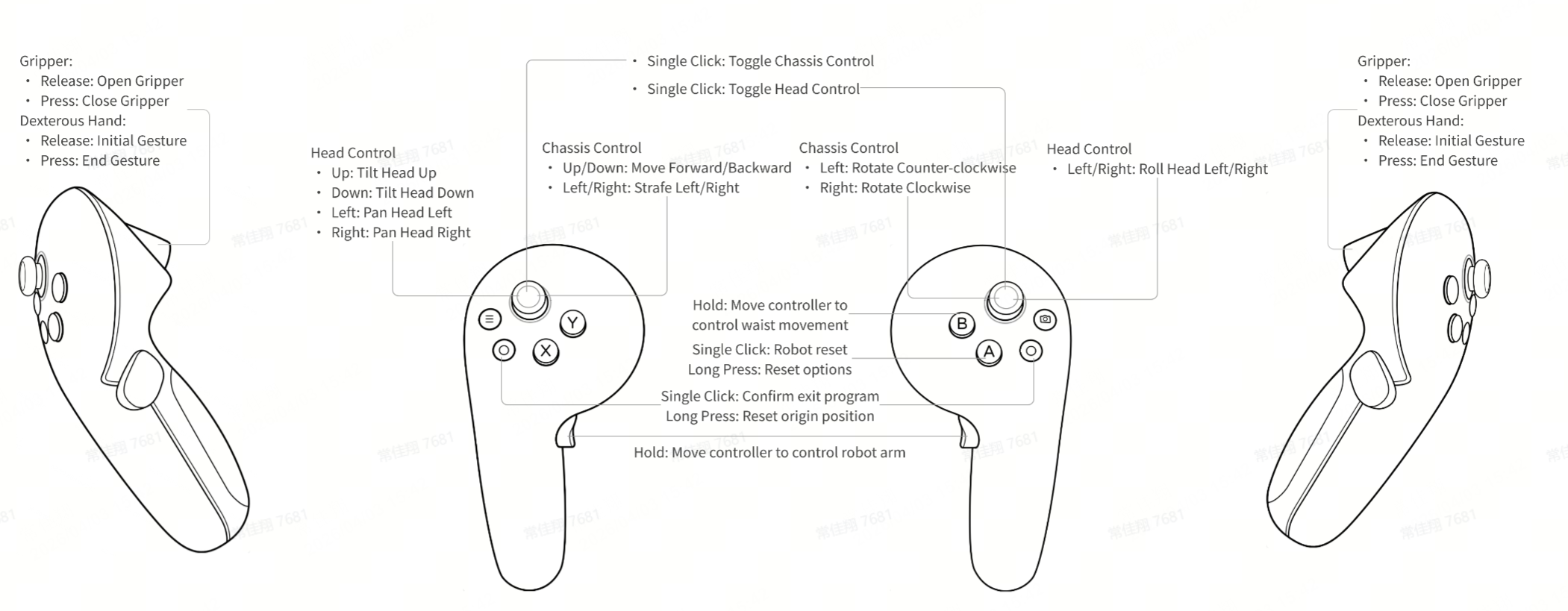
Tips
On the top pannel of the config on VR, you will see the ⚙️. On the last of the settings, you can find the switch to use joystick to control the the robot head and chassis. Please only switch one on at the same time, press the joystick to control only the head or wheels.
If you set the head movement with VR headset, press the end effector trigger to move the head.