LinkCraft Quick Start Guide
Recommended Reading
This manual is designed for quick start. For detailed information, see the LinkCraft manual.
| OMP | Region | Link Address |
|---|---|---|
| emqx-eu.agibot.com | Europe | LinkCraft Europe |
| emqx-sg.agibot.com | Singapore | LinkCraft Singapore |
A brief introduction
With LinkCraft, you can:
- deploy official or community-created works for your robot.
- choreograph your robot’s speeches, movements, and expressions just like a director.
- have your robot learn movements from videos or generate movements based on a voice clip.
- manage the works on your robots.
Deploy a work
On the homepage or LinkCraft Community, you will find the works with ✅, representing official work. The stability is proved when playing this work. By clicking the card, you can play the 3D demo or directly deploy to device.
You can also find the community work, they are probability not tested on the real device.
Generate a new work
By clicking the Create New Work button in the top-left, you can create a work for the selected device. Depending on your needs, you can choose and combine from:
- Motion Imitation: Upload a video and the robot will attempt to mimic your movements.
- Audio Arrangement: Upload an audio clip (you can generate audio within LinkSoul or use other TTS tools), and the system will automatically generate corresponding movements and facial expressions. The results are slightly random, so the output may vary each time.
- My Tasks: Movement generation may take anywhere from several minutes to several hours depending on the length of the uploaded video. We recommend uploading in short clips for better reliability and performance, as the generated motions cannot be edited afterward.
- Audio Processing: Process your audio using the provided tools and incorporate it into your work.
- Asset Library: Directly deploy and arrange motions, expressions, and audio by clicking each asset card, adding it to the timeline, and arranging items as desired.
- Includes a wide variety of official motions and expressions (no audio).
- You can also upload your own audio or expressions (800x480 px, mp4), and incorporate Motion Imitation or Audio Arrangement results as you like.
This is the most creative part — arrange everything like a director.
After saving your project, you can deploy it to online devices. If your robot is on but not online, refer to the FAQ for possible solutions.
Group play
On Robot Orchestration -> Group Play, you can create a new Performance Task to have your robots perform the same task synchronously. Select a work, add the devices in your organization, deploy to them, and wait for the show. Note that network delay may affect synchronization — you can also try the Group Control Tool for tighter synchronization over your local network.
Device management
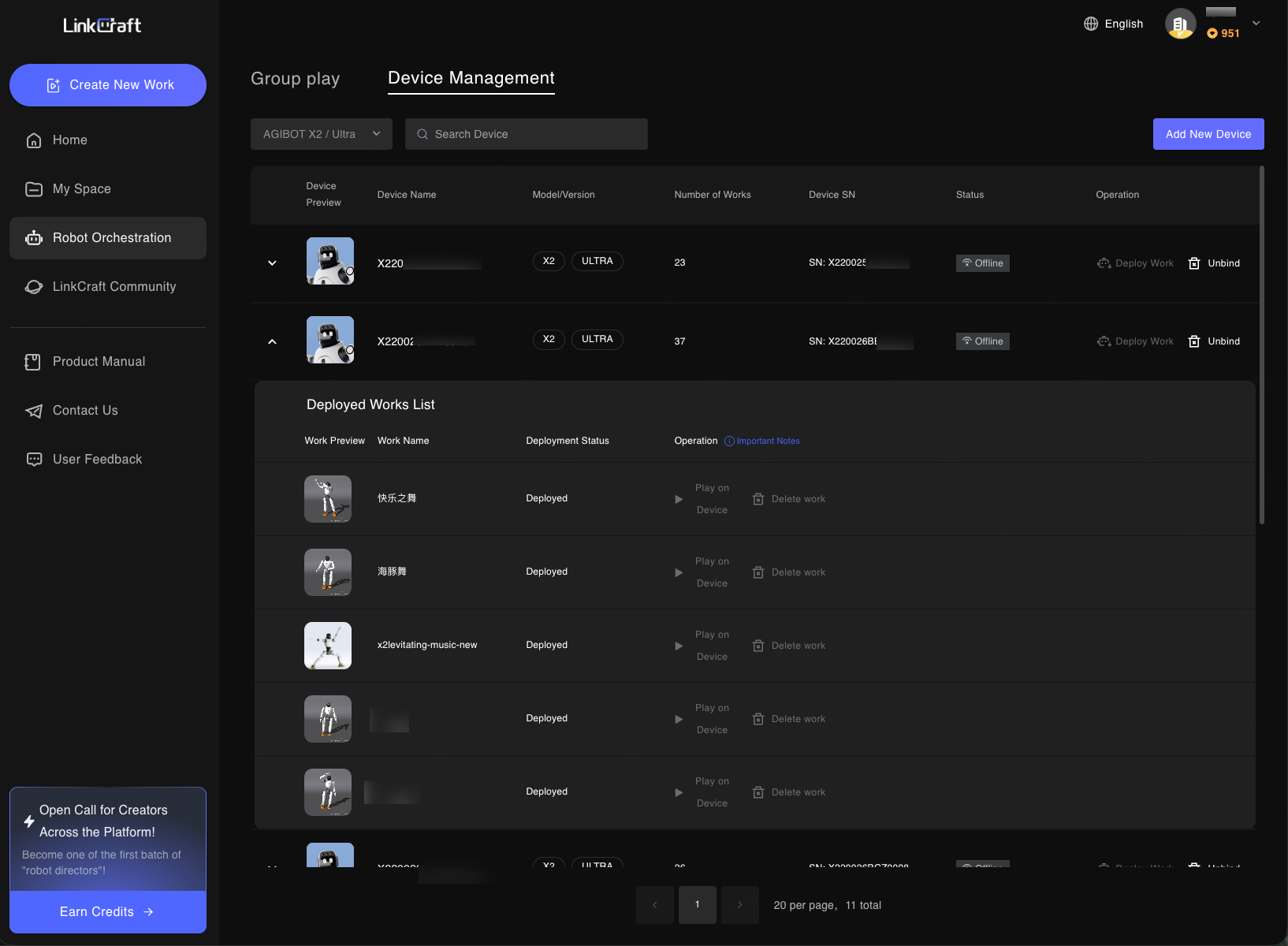
On Robot Orchestration -> Device Management, you can manage the deployed works of the robots in your organization when the devices are online.
Read Next
Platform
LinkSoul Quick Start