LinkSoul Quick Start
Recommended Reading
Depending on your robot’s OMP server, click the correct server. Your region not listed? Please contact us.
| OMP | Region | Link Address |
|---|---|---|
| emqx-eu.agibot.com | Europe | LinkSoul Europe |
| emqx-us-east.agibot.com | North America | LinkSoul North America |
| emqx-sg.agibot.com | Singapore | LinkSoul Singapore |
For detailed information, see the LinkSoul manual.
This page provides a quick guide to adding an agent to your robot. Refer to the toc (table of contents) on the right side of this page 👉 to find the features you need on LinkSoul.
After logging in or registering your account, you can switch to your organization. If you have used any of our other platforms, you will notice that your robots are already available in the device management tab.
Switch into your organization
-
If the robot has not been bound before, read the instructions to add it to your organization.
-
If the device is already bound, switch into the organization where your robot is bound. If your device is bound to an organization that you are not a member of, see this page.
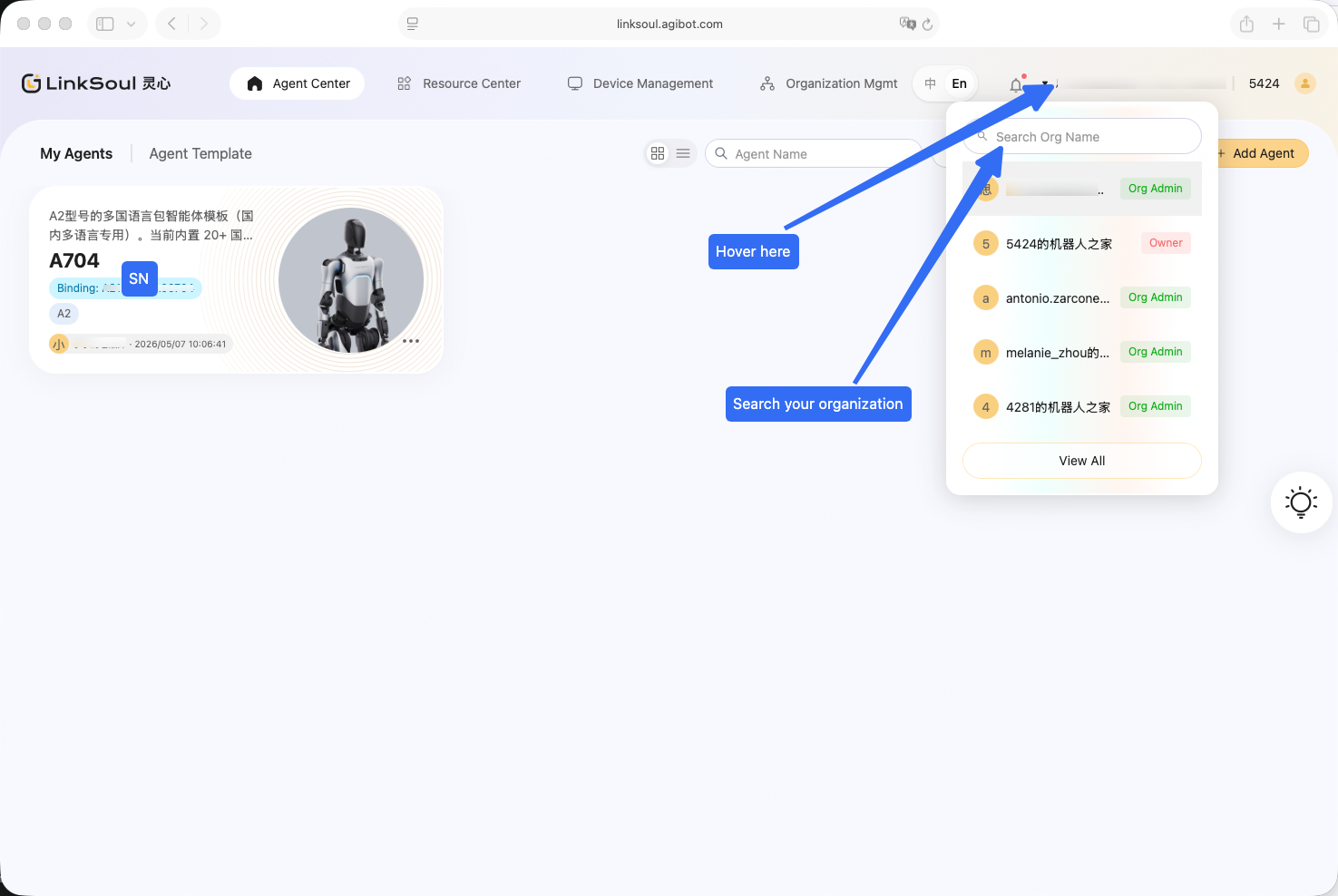
If you have not purchased a device yet, you can also go directly to Agent Center and select a model.
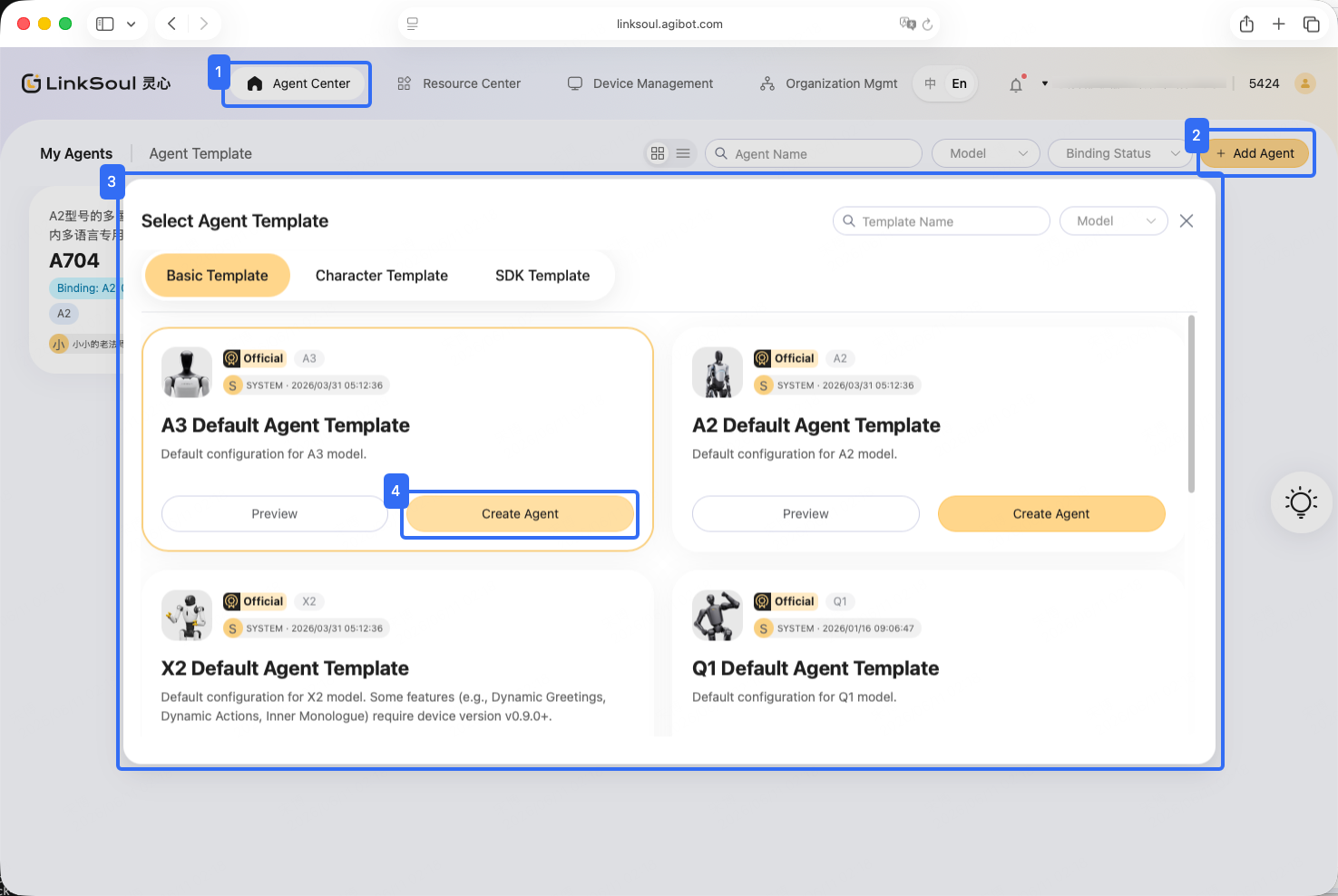
Add an agent
You can follow the steps below to add an agent of the desired model.
Set the language of your robot
Click the agent you have created. You can find Interaction Language in the left panel, where you can set your desired languages. Each selected language will activate a Persona in the middle panel (scroll down). Chinese is shown by default, but you can ignore it and set the persona for your desired language.


Set knowledge base for your agent
You can set a specific knowledge base depending on the event and have Lumi answer from it. Go to Resource Center in the navigation bar and click +New Knowledge Base in the top right. After filling in the basic settings, you can start adding knowledge for Lumi by clicking + Create New.
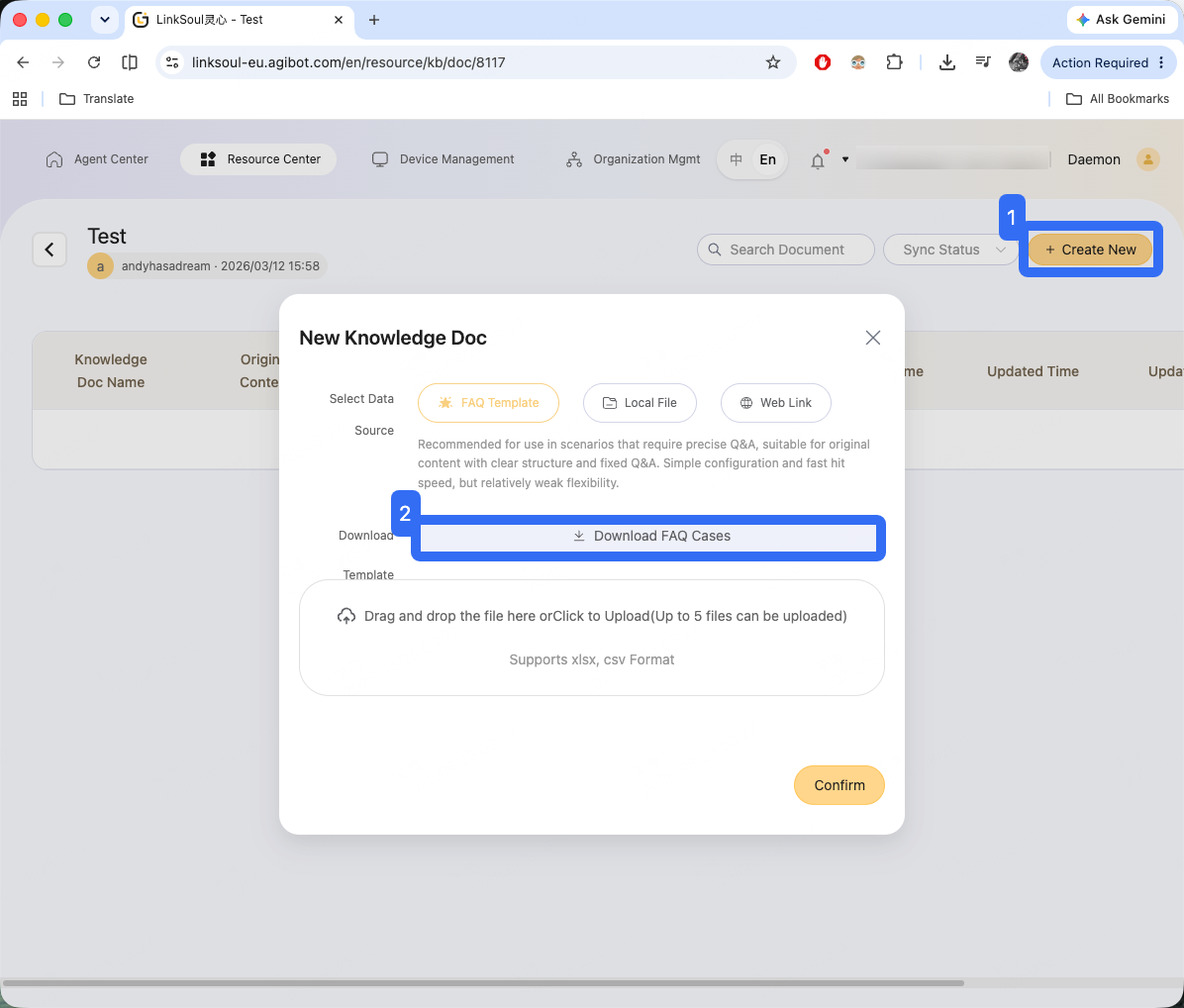
Once the knowledge base is created, click the knowledge base name to view the detailed list of your Q&A entries. You can edit or delete individual entries, or insert a new one.
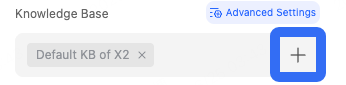
Return to the agent settings panel, where you can enable the newly created knowledge base. You will also find additional advanced settings for search modes and types here, which you can modify as needed.
You may have noticed User Info — that is our next topic.
Greeting your guests
For different events, you can create different groups to manage your guests. Got to Resource Center -> User Info Management click Add User Information to add a visitor, fill in the visitor’s basic information, or add multiple visitors using pre-prepared files (as shown in the UI).
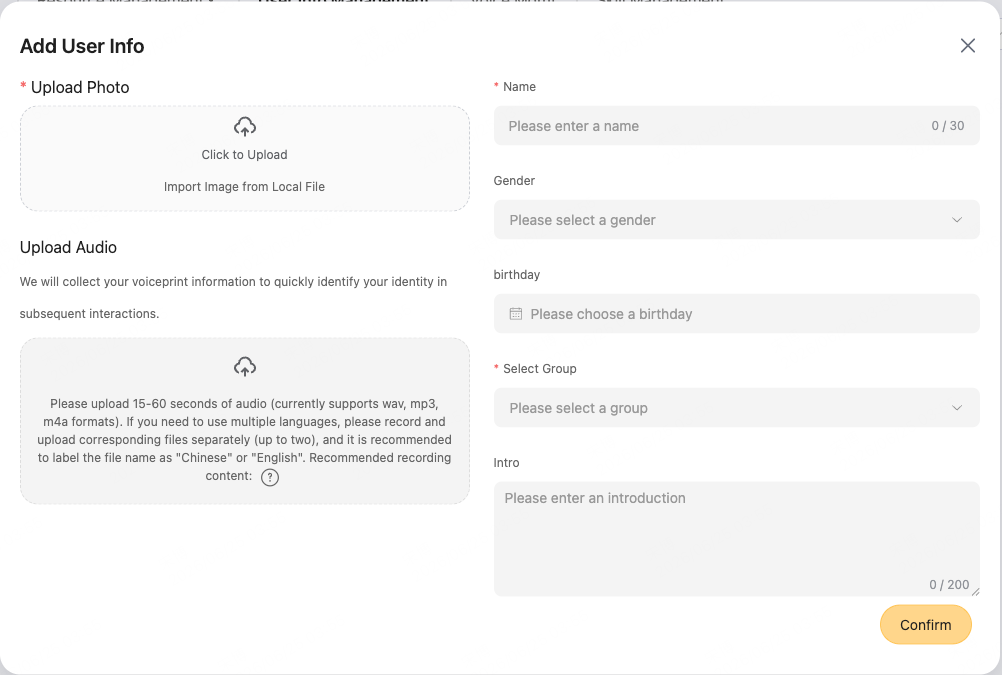
Once your guest information is filled in, you can return to the agent to select this person and set the title and greeting that Lumi will say.
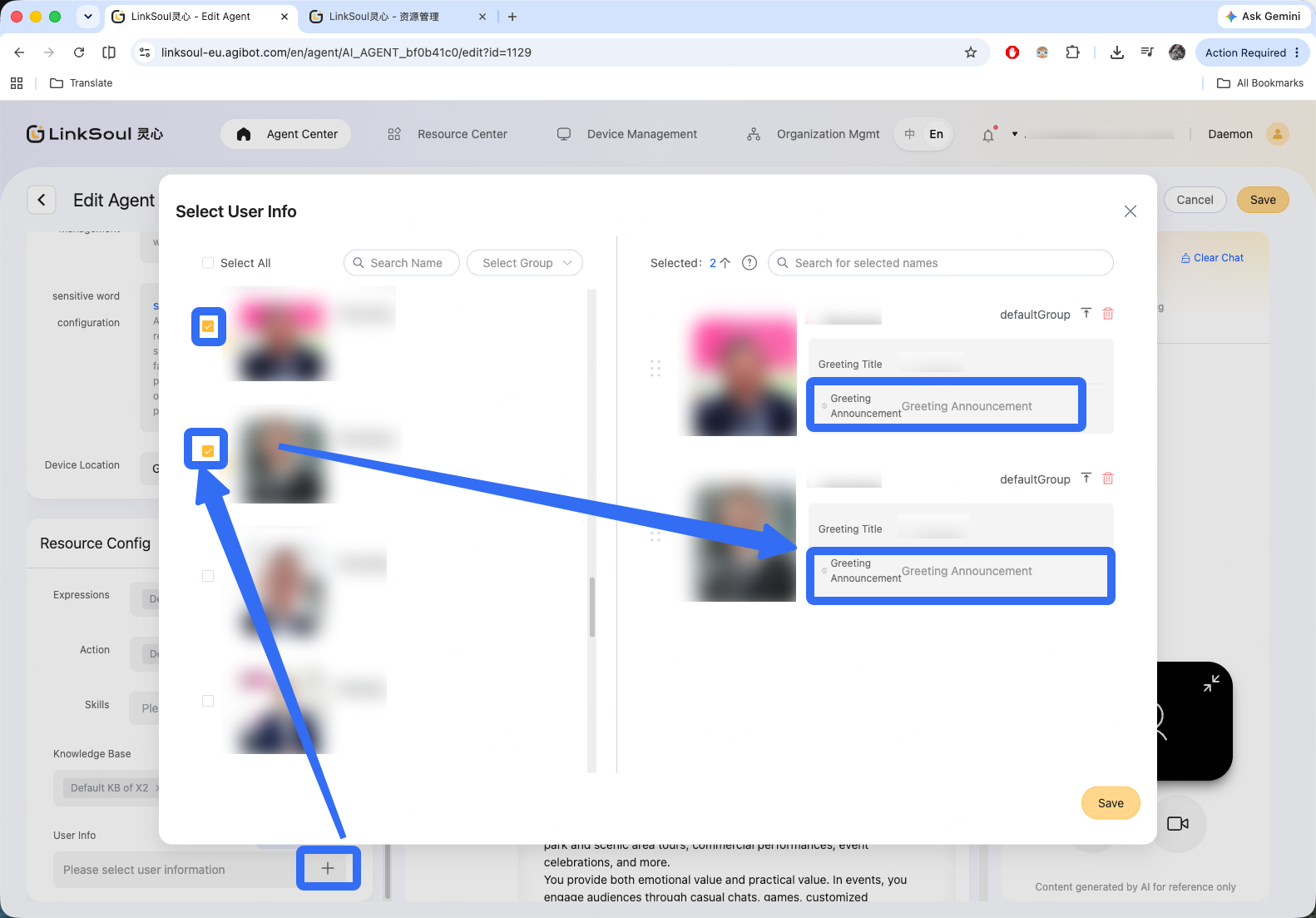

Stranger greeting
After being turned on, the robot can provide active welcoming services to users without adding facial information without being awakened first.
Add some skills
You can use certain keywords to trigger emojis, voice commands, or actions — or all three at once. This function is designed to react with random actions. (If you want specific words to trigger specific actions, you can learn how to create a LinkCraft.) Go to Resource Center -> Skill Management -> My Skill Pack -> +Add Skill Pack -> +Add Skill.
You can then start designing the skill based on certain keywords, for example:
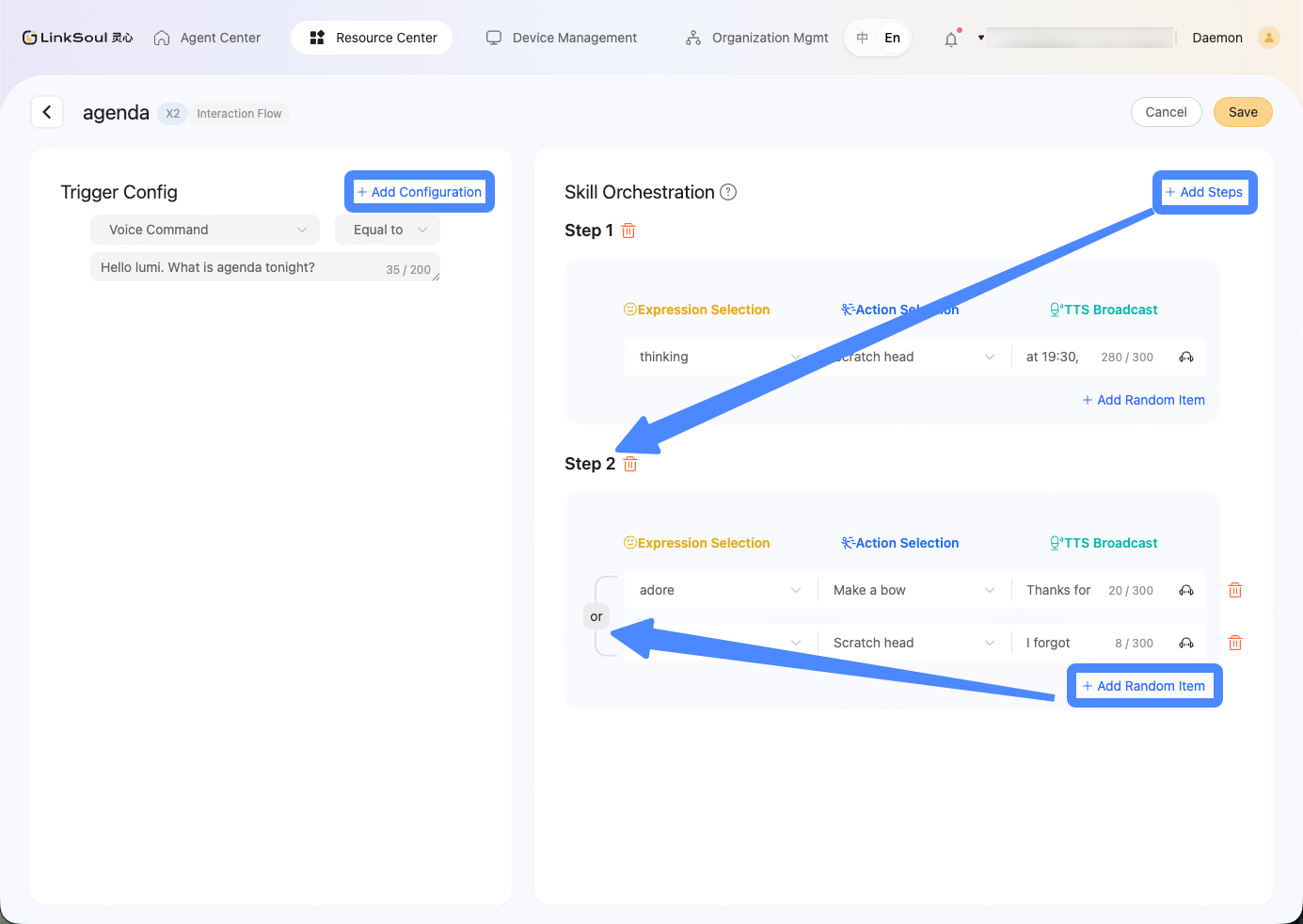
Don’t forget to save the skill, and don’t forget to activate this skill package in your agent if needed.
Inner monologue
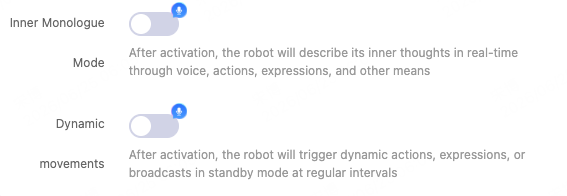
If you want the robot to be more interactive, you can enable these two settings and it will occasionally share its thoughts. The robot will also perform some random actions when idle. You can turn this function off here, or modify the time interval and effective time (You don’t want Lumi talk in the middle of night, right?).
Bind your agent to the robot
In either Agent Center or Device Management, you can bind the agent to your robot using the … icon on the desired robot or agent card, then select Bind Device/Agent to bind them. This typically takes only 5–10 seconds to sync to the robot.
Frenquently asked question: in Binding Process, always initializing:
- Check if your robot is online.
- Try to reissue, if still not available, try following.
- Switch the robot’s network to another Internet.
- Check whether the LinkSoul site corresponds to your robot’s OMP Server.
LinkSoul or LinkCraft?
- LinkSoul offers a wide range of robot responses, enabling random interactions with visitors, without the need for manual control.
- LinkCraft is designed to plan every movement, sound, and expression of the robot. If you need more precise control, please refer to LinkCraft, which requires manually control.
Read Next
Firmware
A2 Ultra