VR Teleoperation Quick Start
Recommended Reading

Preparation
Hardware and software requirements
| No. | Hardware / Software | Description |
|---|---|---|
| 1 | PICO 4 Ultra | VR headset |
| 2 | VR App | See the Software Installation Guide for the app name (updated continuously) |
Hardware and Software Requirements:
-
Hardware: PICO 4 Ultra + X2 Ultra robot only (X2 Youth not supported)
-
Connection: Robot hotspot (recommended) or LAN IP
-
Startup: L2+X → R2+X → R2+△
-
Config file:
/agibot/software/mc_param/robot/lx2501_3_t2d5/remote_controller_config/operation_config.yaml
Network connection configuration
Robot hotspot connection (recommended)
-
Connect the VR headset to the robot’s Wi-Fi hotspot.
-
On the robot body (IP:
10.0.1.40), runifconfigand check the IP address of hotspot0 (typically192.168.88.88). -
If the hotspot Wi-Fi password is unknown, run:
cat /agibot/data/var/hostapd/hostapd.confLAN IP connection
-
The VR headset and the robot must be connected to the same network.
-
On the robot body (IP:
10.0.1.41), runifconfigand check the IP address of wifi0.
⚠️ The VR headset and the robot must be on the same local network (LAN).
VR teleoperation procedure
Startup and app library
-
Power on the VR headset.
-
Press and hold the Menu button on the right-hand controller.
-
Click App Library in the lower-left corner.
-
Open the corresponding VR app.
Note: Users must maintain their orientation while connected. If the orientation changes, exit VR and recalibrate.
Video feed connection mode
-
No Video Feed Mode: Click “Wireless Connection” → enter the robot’s IP address → click Connect.
-
With Video Feed Mode: Click “With Video Feed” → “Local Area Network” → “Tencent”
-
Server address:
10.111.102.18(contact technical support if issues arise) -
Room number: Enter the robot’s SN code
-
Get Robot's SN
On the robot body (IP: 10.0.1.40), run:
cat /agibot/data/info/sn🤖 The SN label is also on the robot’s neck.
Teleoperation startup
Startup modes
- Power on → Standby (L2 + X) → Stand up (R2 + X) → Teleoperation (R2 + △)
OmniHand hand configuration (optional)
If gripper or omnihand hand configuration files need to be modified, restart the mc service or reboot the robot after making changes.
On the robot body (IP: 10.0.1.40), edit:
vim /agibot/software/mc_param/robot/lx2501_3_t2d5/remote_controller_config/operation_config.yaml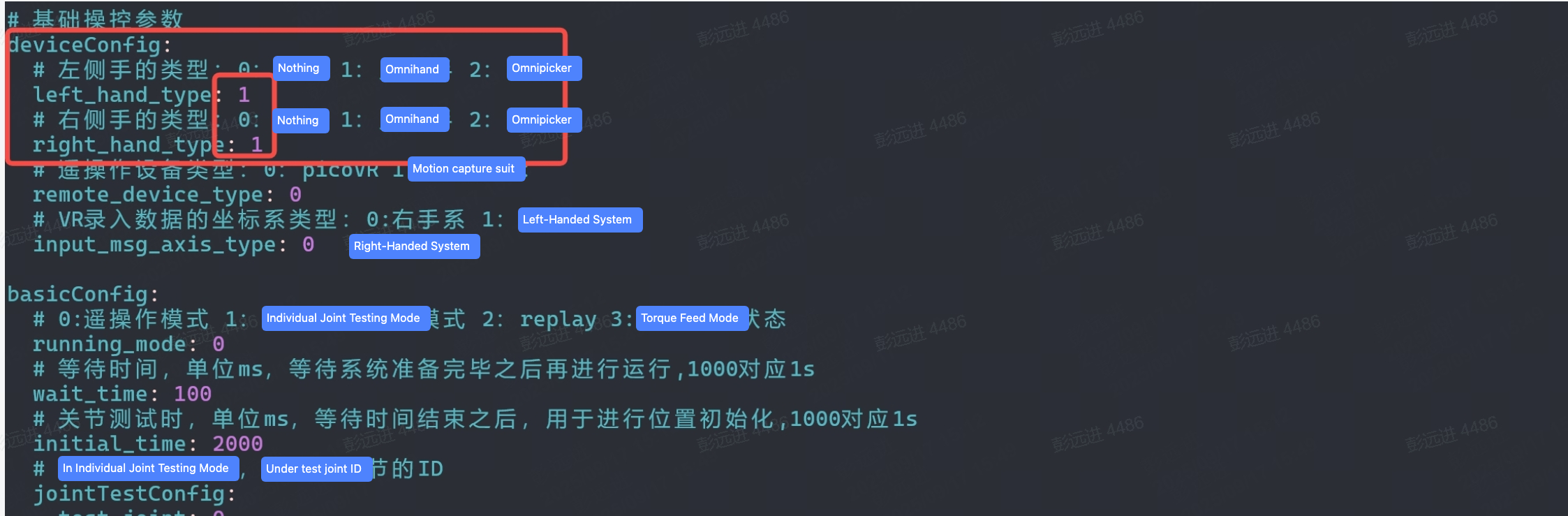
Modify the default omnihand hand configuration according to your actual requirements.
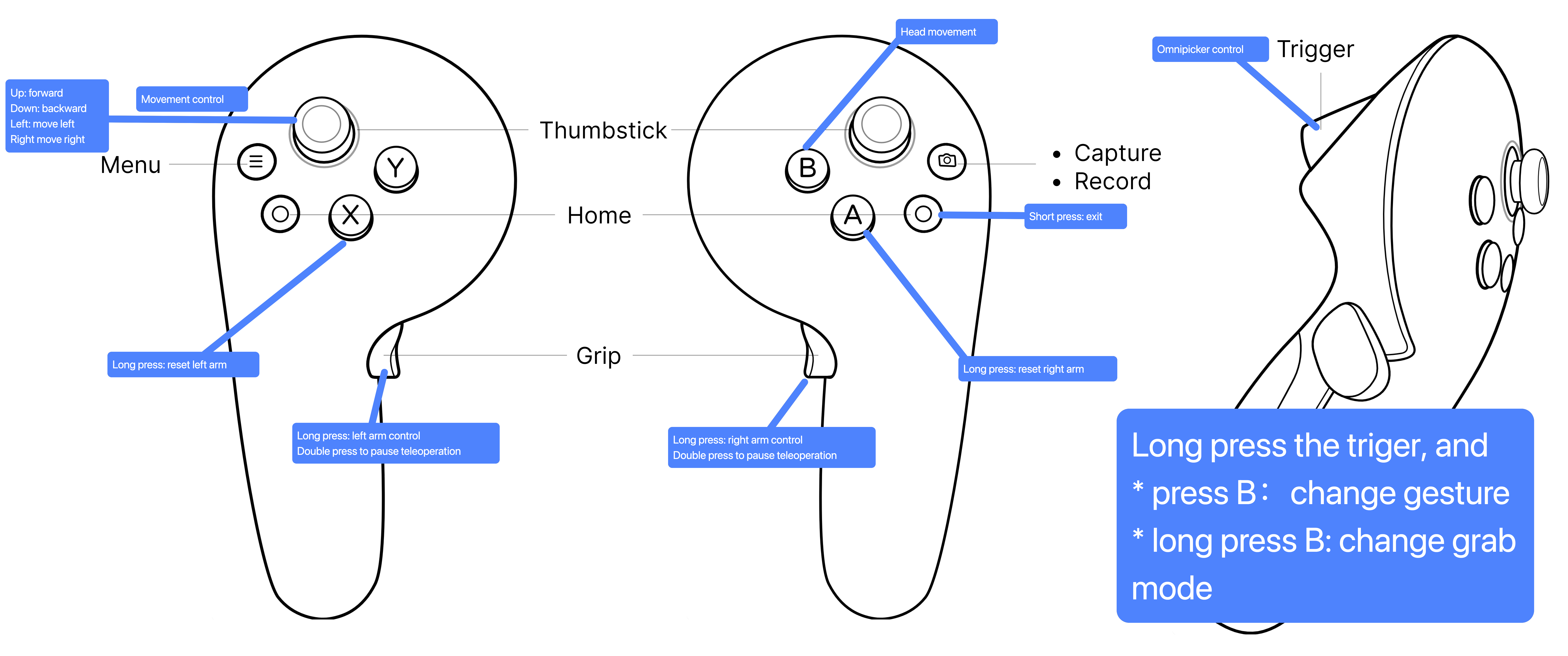
Button diagram
Read Next
Products
X2 Calibration