Upgrade Your Robot's Firmware using FOTA
Recommended Reading
Quick reference summary
This page is intended for the X2 series robot. For other robots, refer to the corresponding upgrade procedure.
Checking list:
| Item | Detail |
|---|---|
| Robot subnet — Youth | 10.0.200.XX/24 |
| Robot subnet — Ultra | 10.0.1.XX/24 |
| Host platform | x86 only (Windows / Ubuntu) |
| Upgrader version | v0.0.20 |
| Firmware naming | fast_fota-aarch64 prefix |
| Connection type | Ethernet to robot debug port |
| Rollback | Not supported — re-flash on failure |
Prepare the host computer
Download the upgrader for your host computer. Download according to your platform (x86 only supported): FOTA Tool
Download the firmware
FOTA packages compatible with this upgrader are prefixed with fast_fota-aarch64. For released firmware, see the firmware page.
Download the required firmware to the host computer.
Connect the host computer to the robot via Ethernet
Connect an Ethernet cable from the host computer to the robot’s debug port.
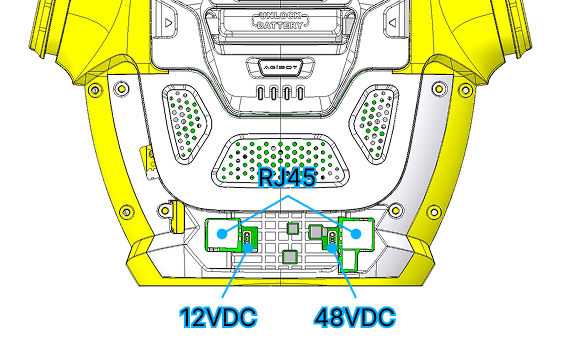
Configure the host computer’s IP address to match the robot’s subnet. Choose based on the robot type:
Network Mask: 255.255.255.0
| Robot Version | IP Subnet |
|---|---|
| X2 Youth | 10.0.200.XX |
| X2 Ultra | 10.0.1.XX |
Run the upgrader
On Ubuntu
On the Ubuntu host computer, the first time you use a new upgrader, you must grant it executable permission:
-
Right-click the upgrader file and select Properties.
-
Select the Permissions tab.
-
Check “Allow executing file as program”.
On Windows
Double-click to open the upgrader. On first launch, select “Trust this program” when prompted.
‼️Important:
Boot your robot, place it in a safe position (laid flat or suspended), and set it to zero torque mode.
Back up your secondary development files before upgrading.
-
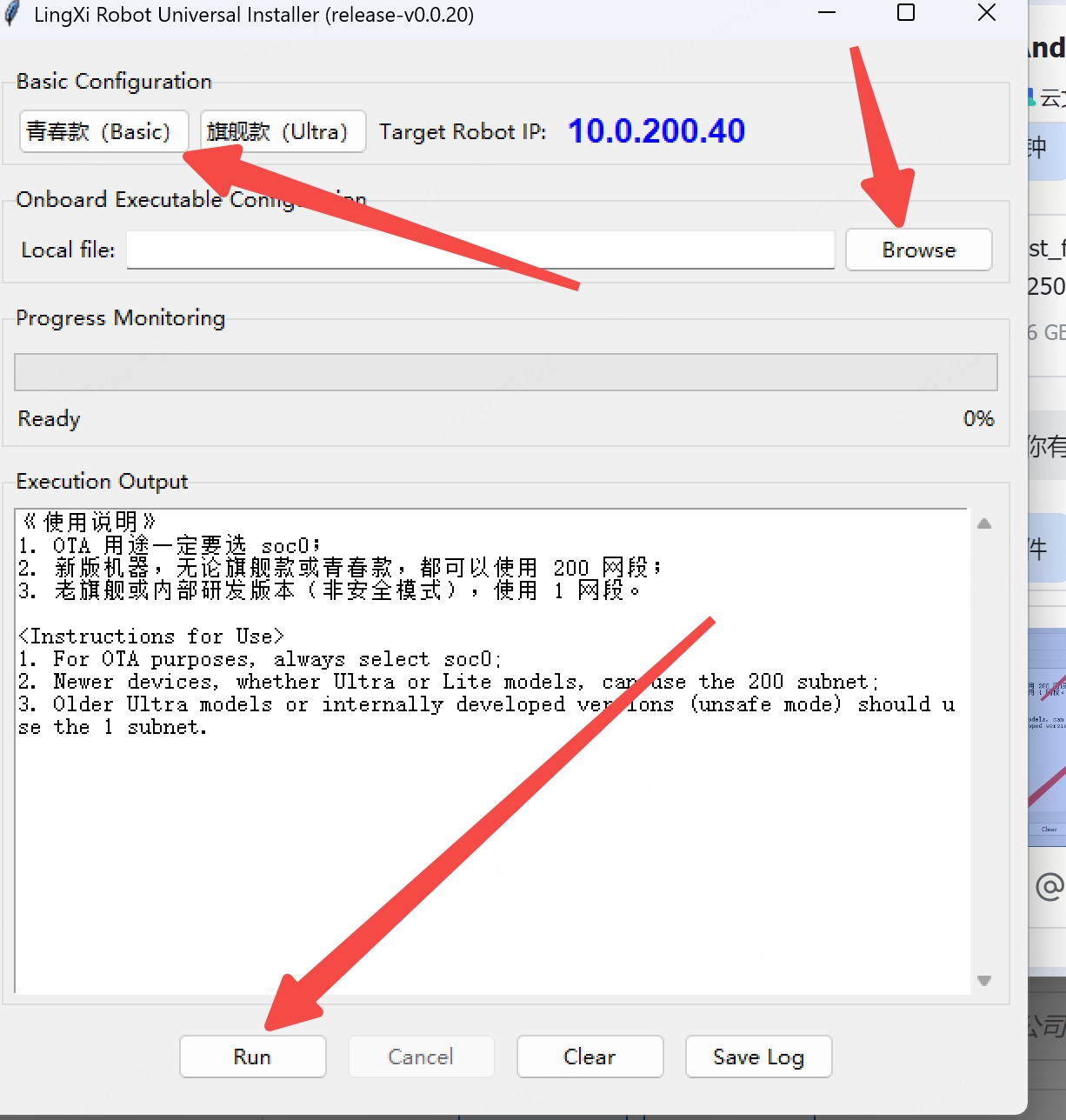
Open the upgrader.
-
Select the target robot version (Ultra or Youth).
-
Click Browse and select the fast_fota-aarch64 firmware file stored locally on the host computer.
-
Click Run to begin execution.
-
Wait for the file transfer and remote execution to complete.
⚠️ Regardless of whether the upgrade succeeds or fails, the robot will reboot. If the execution output displays Done, the upgrade was successful.
You can check in Agibot GO to verify whether the upgrade succeeded; see find your firmware version. If the upgrade failed, please contact us.
Read Next
Products
Find My Robot's IP